
In this blog series, we’ll cover the fundamentals of Azure pentesting, including the prerequisites needed from clients to get started and how to identify misconfigurations to perform lateral movements and abuses.
Pre-requisite
Prerequisites depend on how the client would like to scope the pentest. If they want a black-box test, then we’d only need the company name to get started. However, if it's a grey-box test, it’s ideal to have basic permissions within the client’s Azure account to enable more effective testing.
Before diving into permissions, let’s first review the Azure infrastructure.
- Entra ID/Azure Active Directory
- Azure Resources Manager (ARM)
Entra ID manages identities and access across Microsoft services. It includes users, groups, licenses, and integrations with services like Microsoft 365, Azure DevOps, and Intune.
Azure Resources, on the other hand, include the actual cloud infrastructure and services—such as virtual machines, app services, storage accounts, Key Vaults, databases, and other deployed workloads.
First, I will explain some basics of Azure infrastructure to get familiar with the terminology used within it.
What is Tenant?
The tenant is the highest-level component of an Azure account. You can think of it like creating a new company—let’s call it XYZ Ltd. Within that company, you have all employees, departments, roles, and identity management in place.
Similarly, creating a new Azure tenant is like creating a new company. It contains your Azure Active Directory (Entra ID) and provides the foundation for managing identities, roles, and access. From there, you use Azure Resource Manager to create and manage subscriptions, which you can think of as individual “server rooms” where your resources live.
Anything you do in the Azure portal comes under your specific tenant, Office365, MS Intune, Azure DevOps, Entra ID, Resource Manager, and Saas Applications.
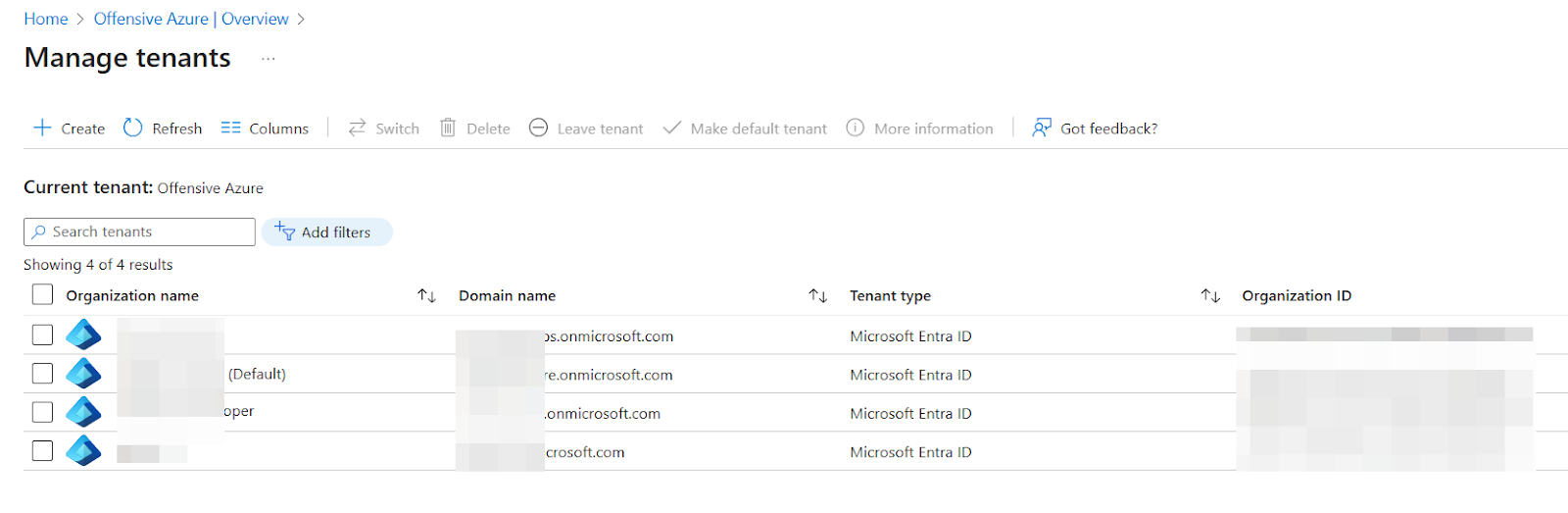
A person can hold multiple companies in Azure, and can also create several tenants, as well. Each tenant has its own unique domain name and comes with a unique tenant ID.
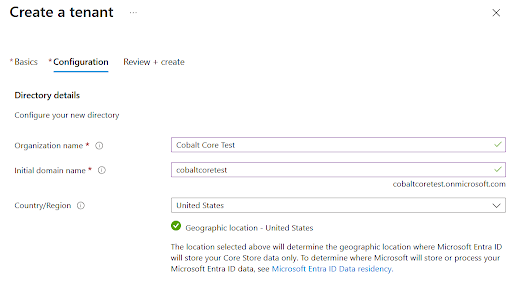
By default, when we create a tenant, our domain will be a subdomain of “*.onmicrosoft.com” as shown in the screenshot below.
Entra ID/Azure Active Directory
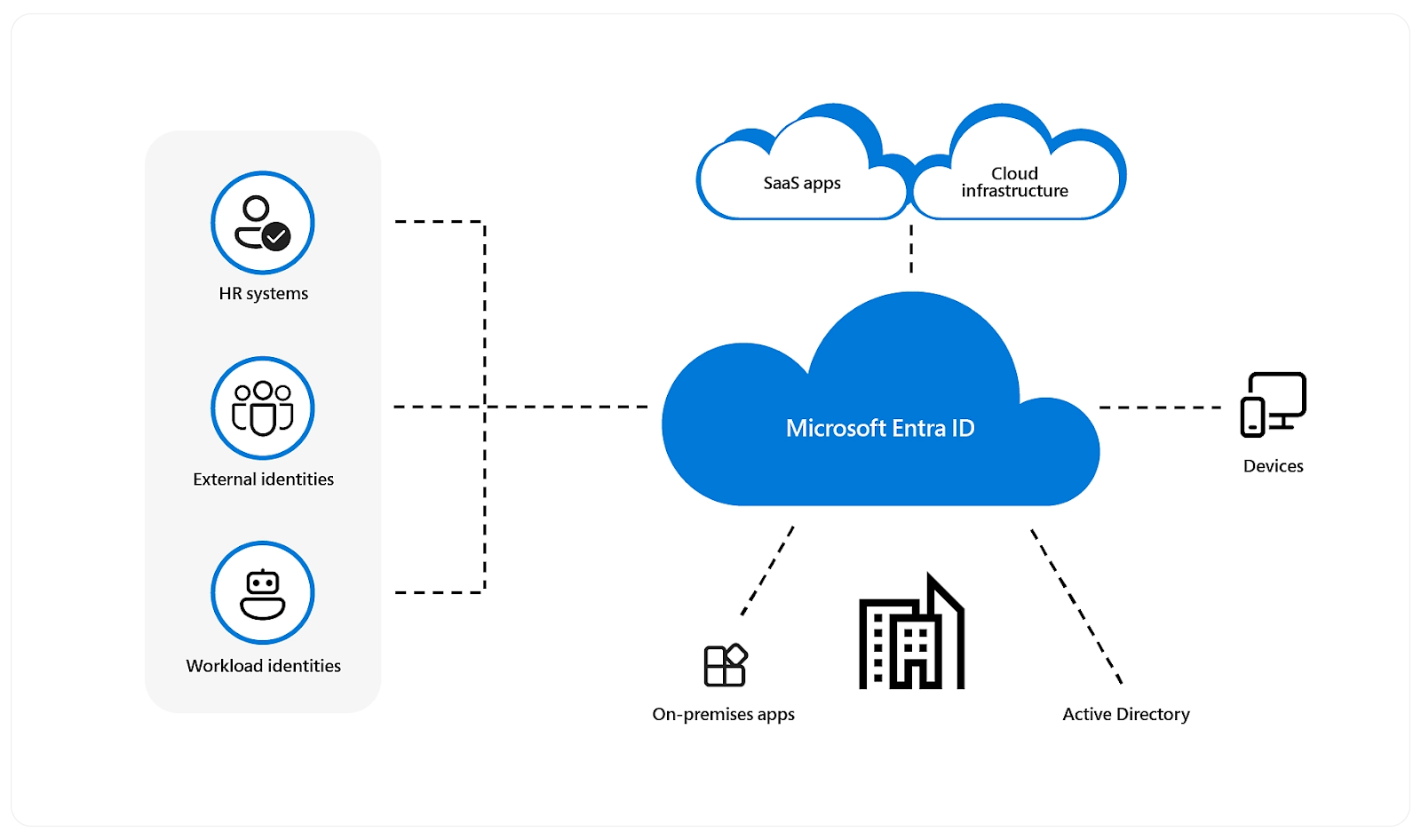
Entra ID is Microsoft’s cloud-based directory service that manages identities such as users, groups, devices, and SaaS applications. It also integrates with on-premises Active Directory through Entra ID Connect (formerly Azure AD Connect), allowing organizations to manage identities across both cloud and on-prem environments.
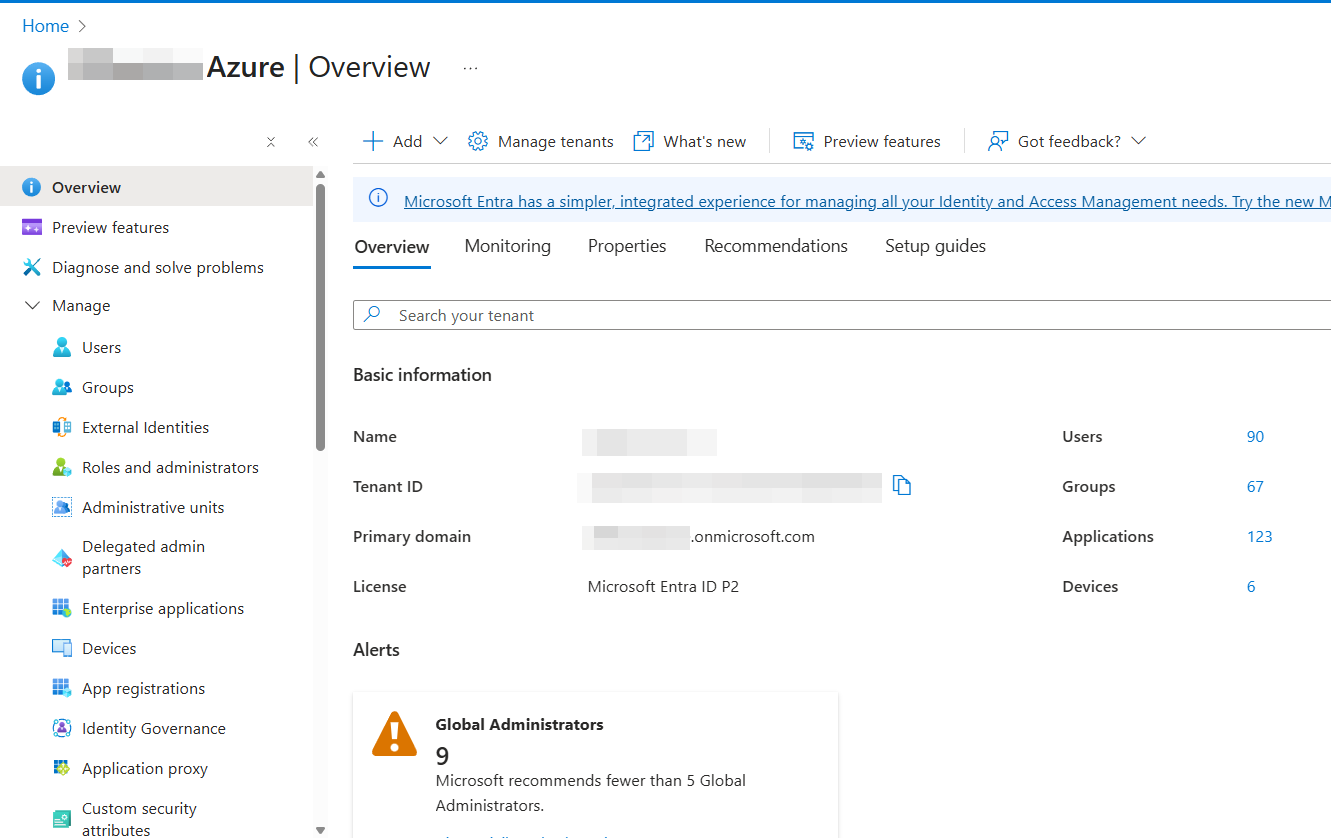
Users and Groups
Users is where all user accounts are created and managed within the Azure tenant. If your organization uses Microsoft services such as Microsoft 365 (Office 365), all associated email accounts will appear in the Users list.
Additionally, if the organization has synchronized its on-premises Active Directory with Azure (via Entra ID Connect), those on-prem users will also be listed here. This allows identities to be managed centrally while supporting both cloud and on-prem environments.
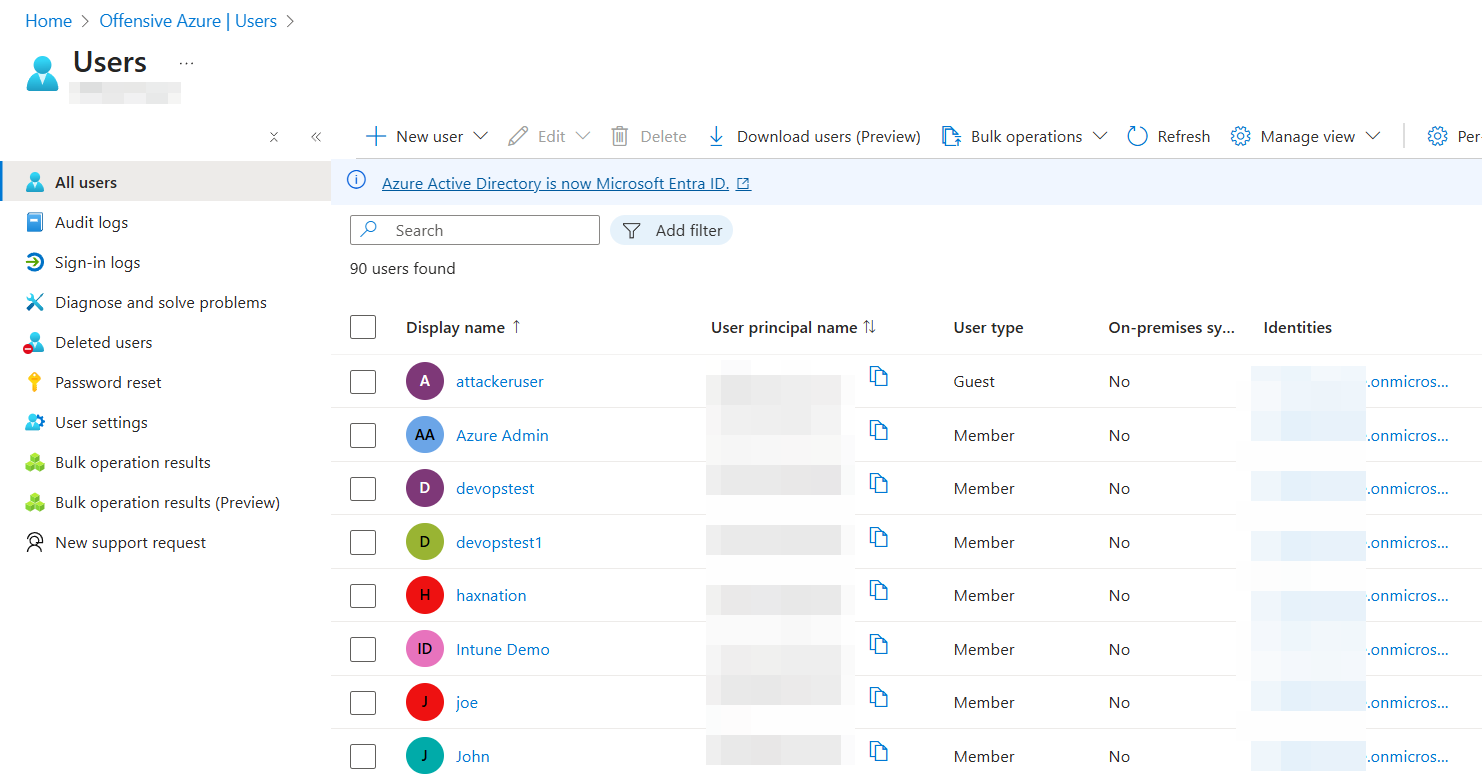
Groups are not limited to containing only users. They can also include other groups, as well as additional identities such as service principals and devices. This flexibility allows organizations to manage access and permissions more efficiently at scale.
We’ll take a deeper look at the different types of groups and explore common misconfigurations in later sections.
Roles and Administrators
In Entra ID, there is a section where roles can be assigned to identities, including users, groups, and other entities such as service principals, app registrations, and enterprise applications.

Entra ID includes more than 100 built-in roles, such as Global Administrator, Global Reader, Application Administrator, Cloud Administrator, Help Desk Administrator, and many others.
App Registration
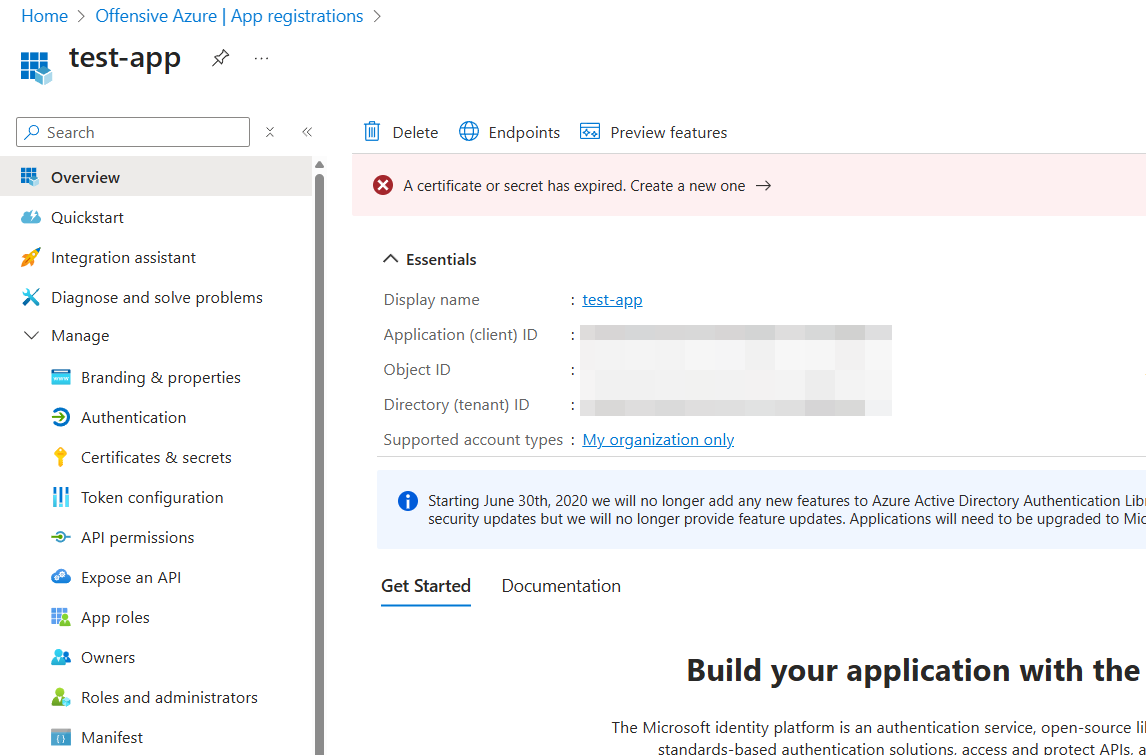
This component serves two purposes. It can be used to create an identity for an application to perform OAuth authentication, and it can also function as a service principal, allowing you to create client secrets for automation and programmatic access.
Each of these has its own set of potential misconfigurations and abuse scenarios, depending on the permissions granted.
Enterprise Applications
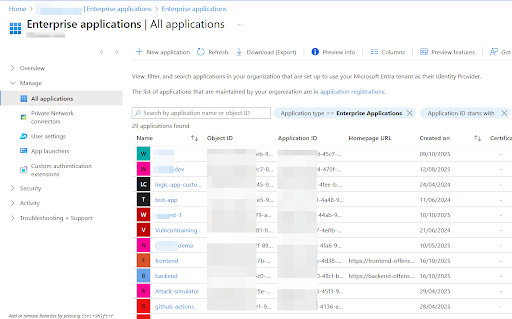
This section represents all identities in the tenant, including App Registrations, Microsoft applications, and any third-party applications that have been granted consent. It also includes managed identities for Azure resources—for example, if a virtual machine has a managed identity enabled, that identity will appear under Enterprise Applications.
The distinction between App Registrations and Enterprise Applications can be confusing at first. However, once you start creating and using them in real scenarios, the differences become much clearer through hands-on experience.
Azure Resource Manager
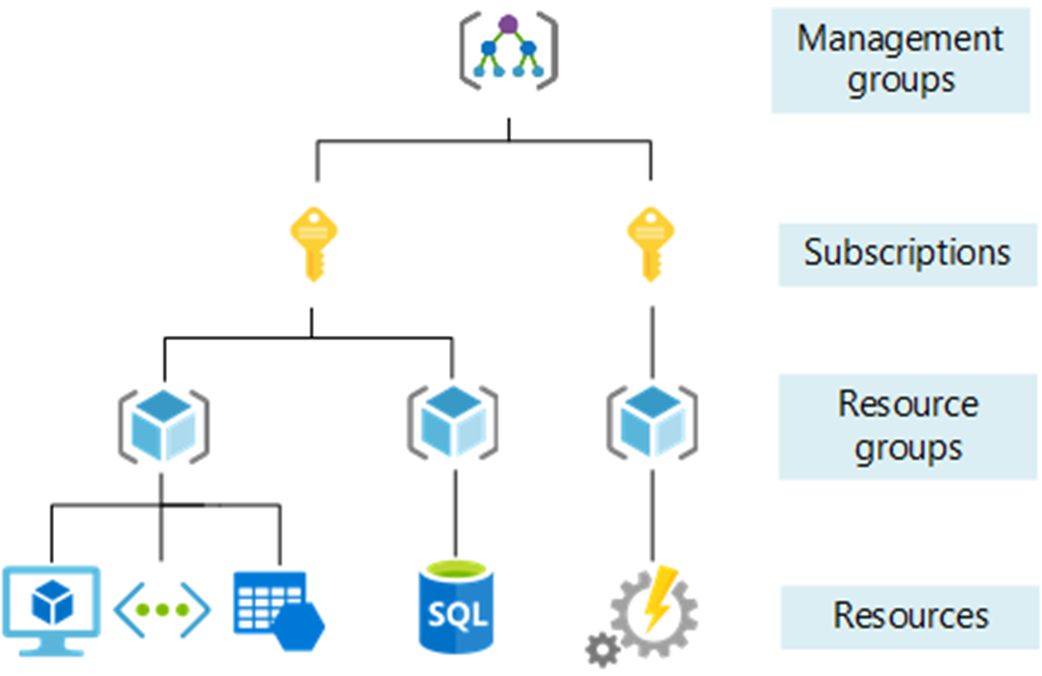
The diagram above shows how the Resources are structured in ARM. Let's understand all of them, one by one.
Management Groups
This is the top level of the management hierarchy. By default, a group named “Tenant Root Group” exists, and any new subscription is automatically placed under it when created. Organizations can also create additional management groups and organize multiple subscriptions across different groups to better align with their structure and governance needs.
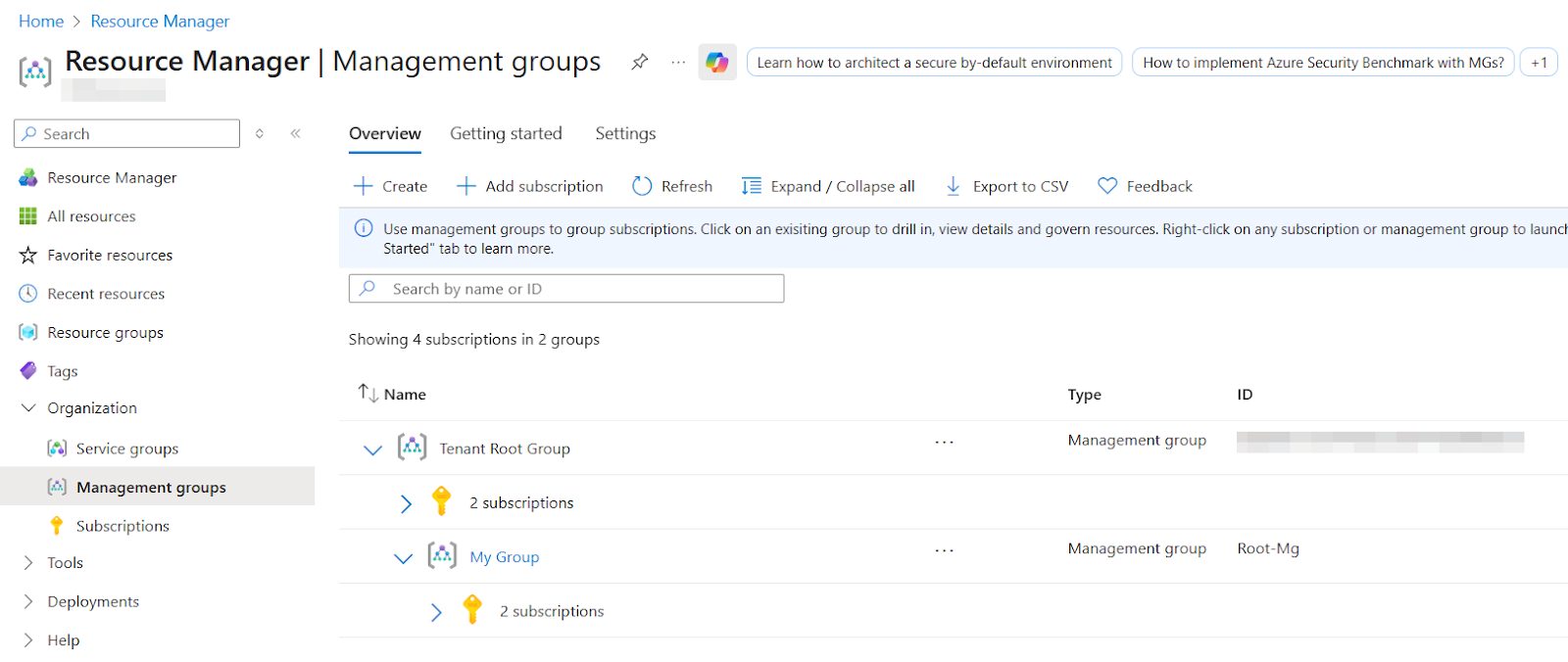
This group also has a Role-Based Access Control (RBAC), which means any user added to any role over this group gets the same permission over all those subscriptions.

Subscriptions
Any user can create their own Azure tenant, but a subscription is something they must explicitly opt into. A subscription acts as an agreement with Microsoft that allows you to create and use Azure resources, and it’s also the unit used for billing.
Charges are based on resource usage over time, so if a resource is no longer needed but isn’t deleted, you’ll continue to be billed for it. Proper resource management is essential to avoid unnecessary costs.
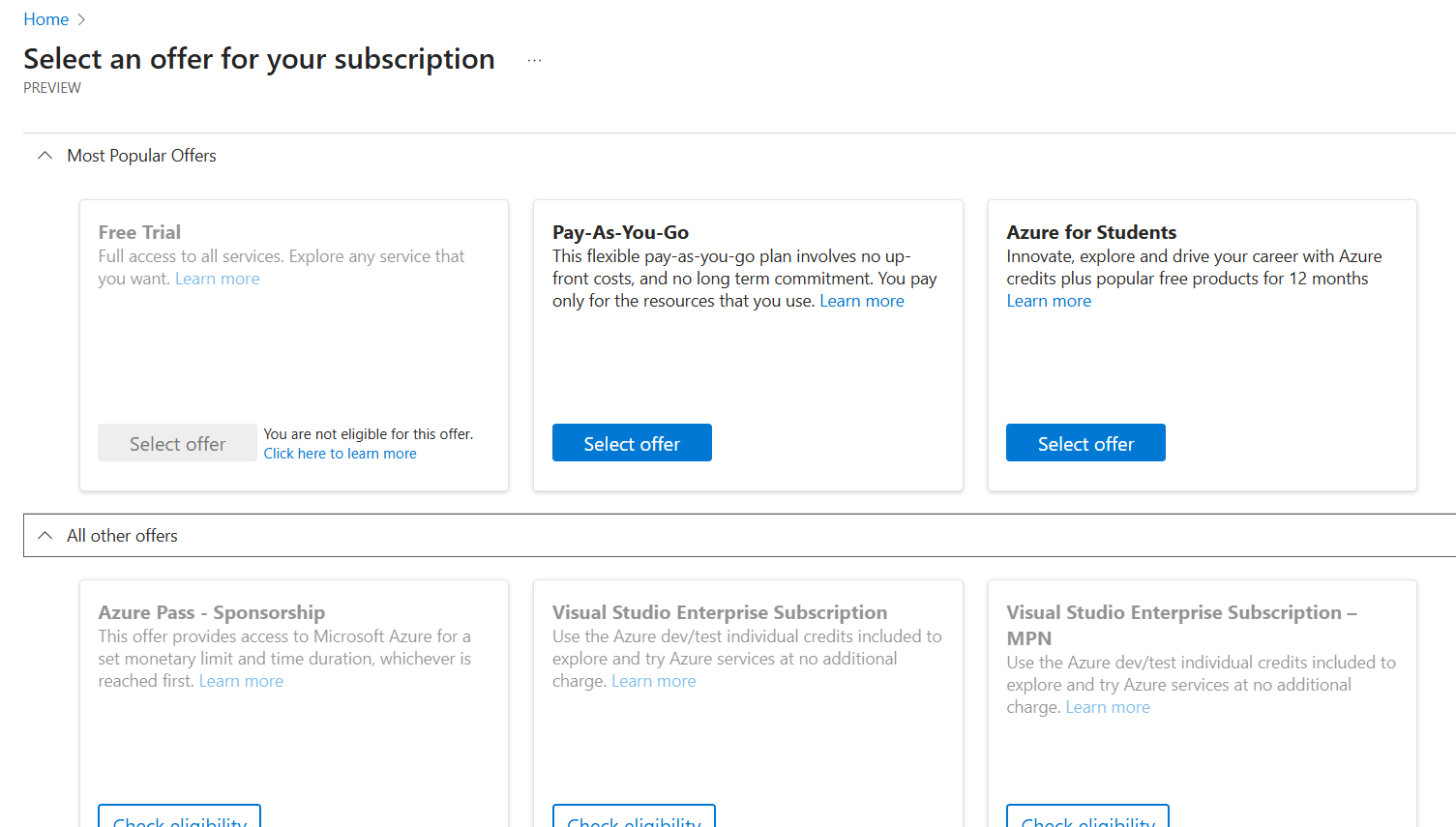
Azure offers several types of subscriptions. For initial learning or testing, the Free Trial and Azure for Students plans are commonly used. These plans provide a limited amount of free credits, allowing users to create resources at no cost. However, they come with restrictions and are not suitable for heavy or long-term usage.
For full access to Azure services without these limitations, organizations typically use a Pay-As-You-Go subscription.
Each resource you create is billed to the specific subscription it belongs to. For example, if you have 10 subscriptions but are actively using only 3 of them to deploy resources, only those 3 subscriptions will incur charges. The remaining subscriptions will show a billing amount of zero.

Resource Groups
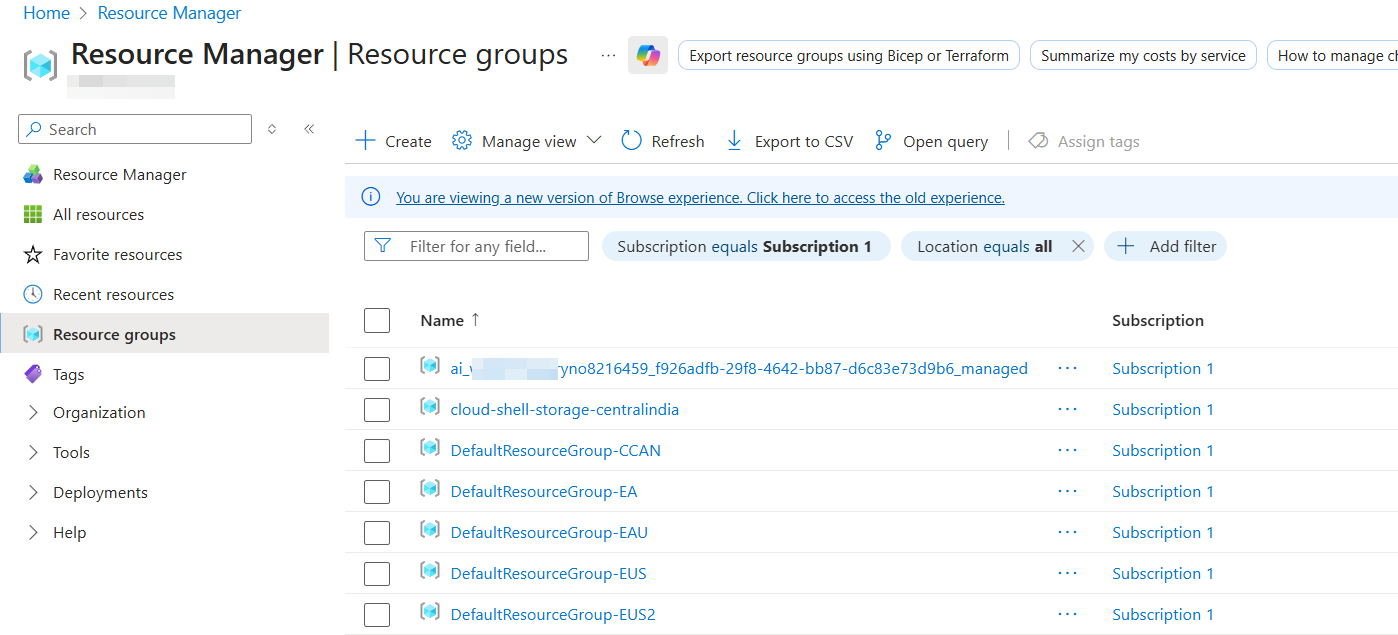
Resource Groups are containers that hold Azure resources. Whenever you create a new resource, you must either create a new resource group or select an existing one. Resource groups help organize, manage, and apply access controls to related resources as a unit.
Resources
Finally, we have resources, which include services such as:
- Virtual Machines
- Storage Accounts
- Cosmos DB
- App Services
- Automation Accounts
- Function Apps
- Container Registries
- Logic Apps
- Key Vault
- Data Factory
- Log Analytics
- Azure Relay, and many more
Azure offers 200+ resource types, each with its own configuration, security considerations, and operational requirements.
In the next part, we’ll walk through how to create a new Azure account using a free subscription, and explore different authentication methods using Azure PowerShell modules and the Azure CLI.