
In Part 1, we covered an overview of Azure infrastructure and its core components. The second part of this series will discuss how to create a new Azure tenant and obtain a subscription so you can begin creating resources such as virtual machines, databases, app services, and more.
Registering a New Tenant
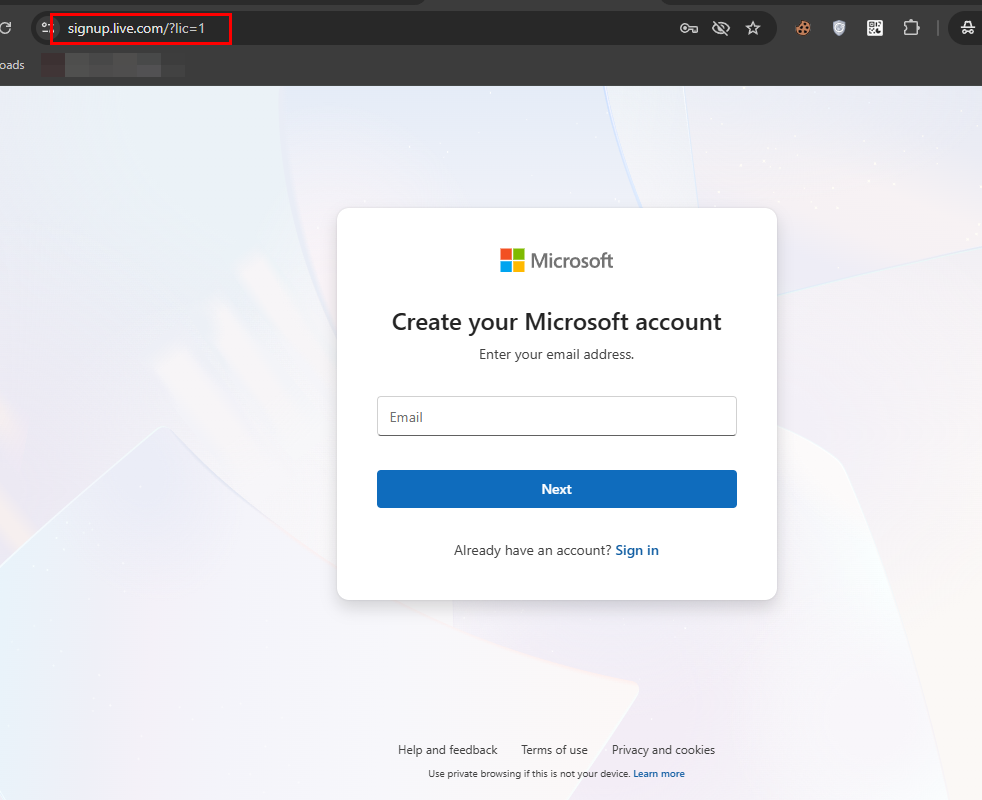
To start off, create a new Microsoft account from https://signup.live.com/.
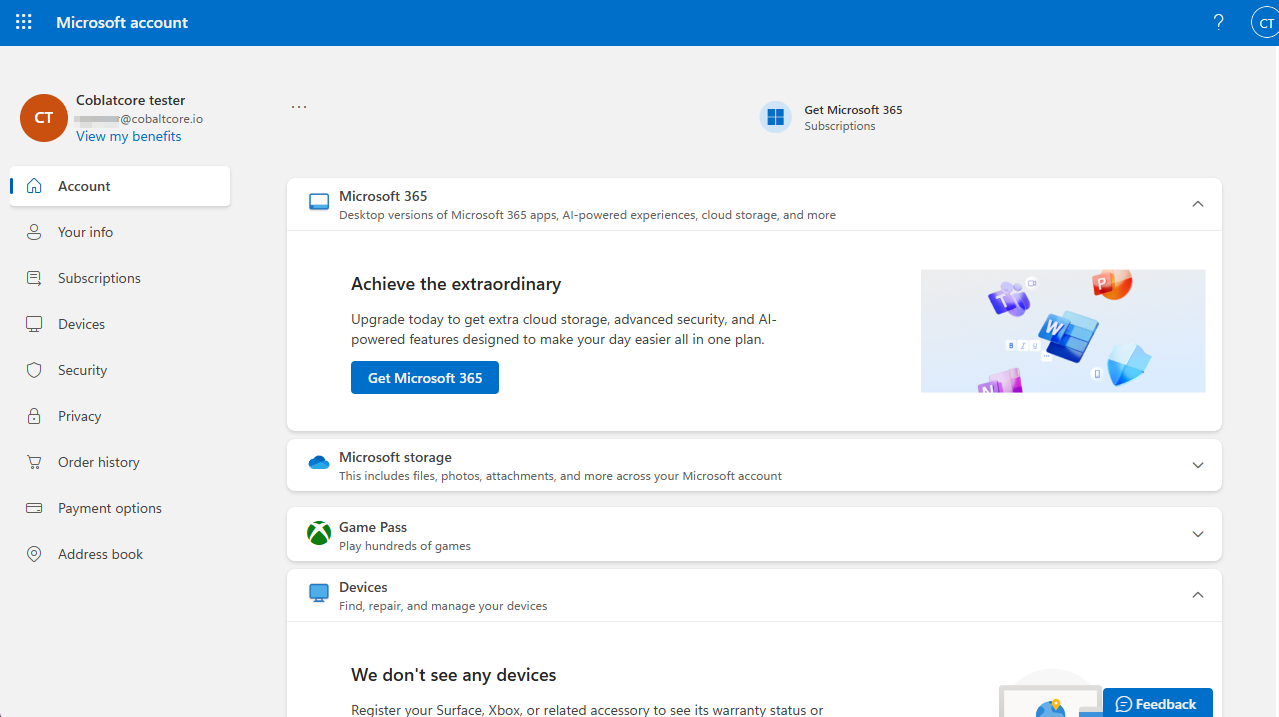
Once your account is created, you’ll be asked to provide your phone number and complete a CAPTCHA for verification. After completing these steps, you’ll be redirected to https://admin.microsoft.com.
Once that’s done, you can navigate to https://azure.microsoft.com/en-us/pricing/purchase-options/azure-account and click “Try Azure for free.” Sign in using the email address you just created, and you’ll be redirected to https://signup.azure.com/, as shown below.
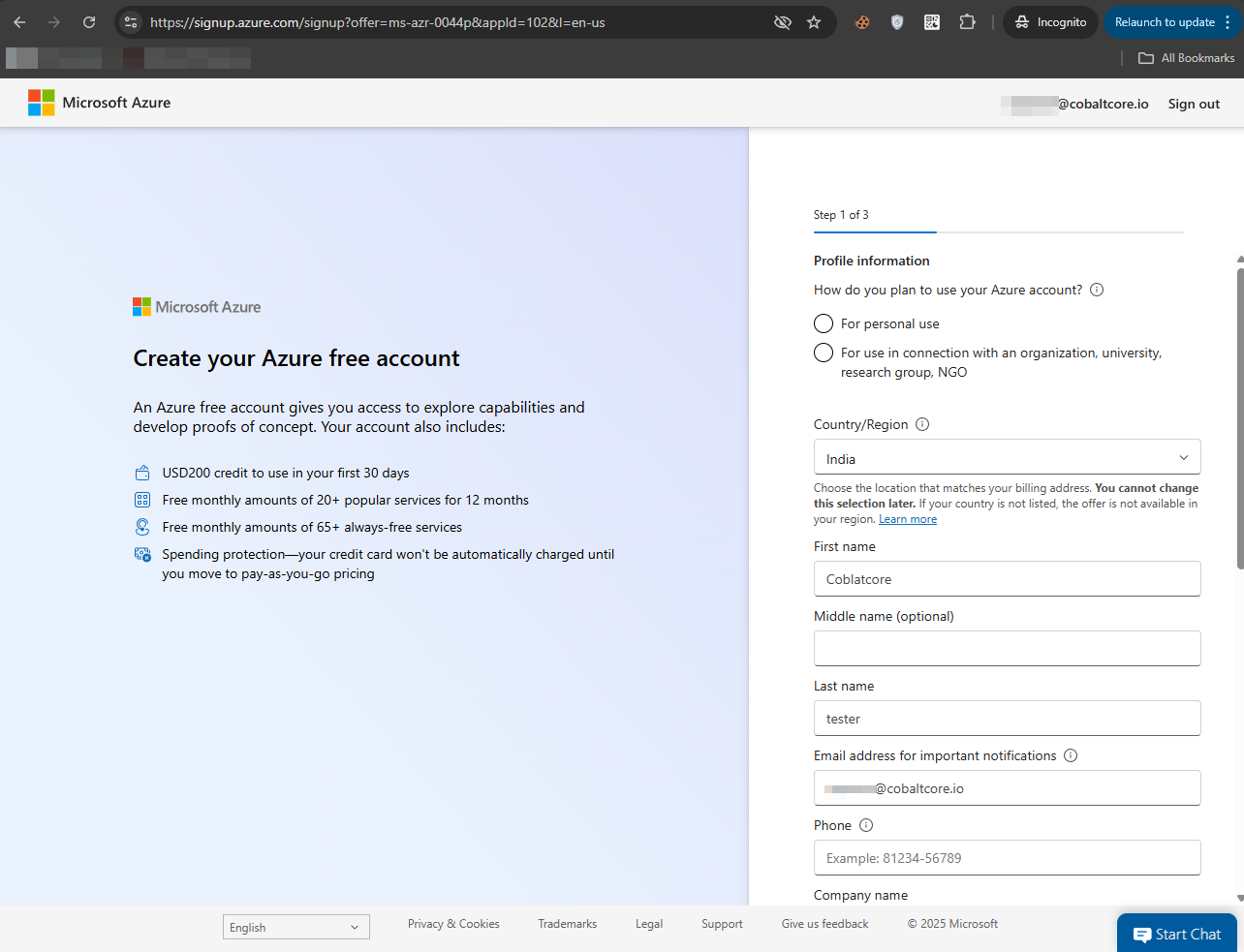
Complete the required fields and continue through the setup. At the final step, you’ll be asked to enter your credit card details. You won’t be charged during signup. This creates a free trial subscription that includes $200 in credits to use within your first 30 days.
Keep in mind that the free trial does not provide access to all features or resource types, so some services may be limited.
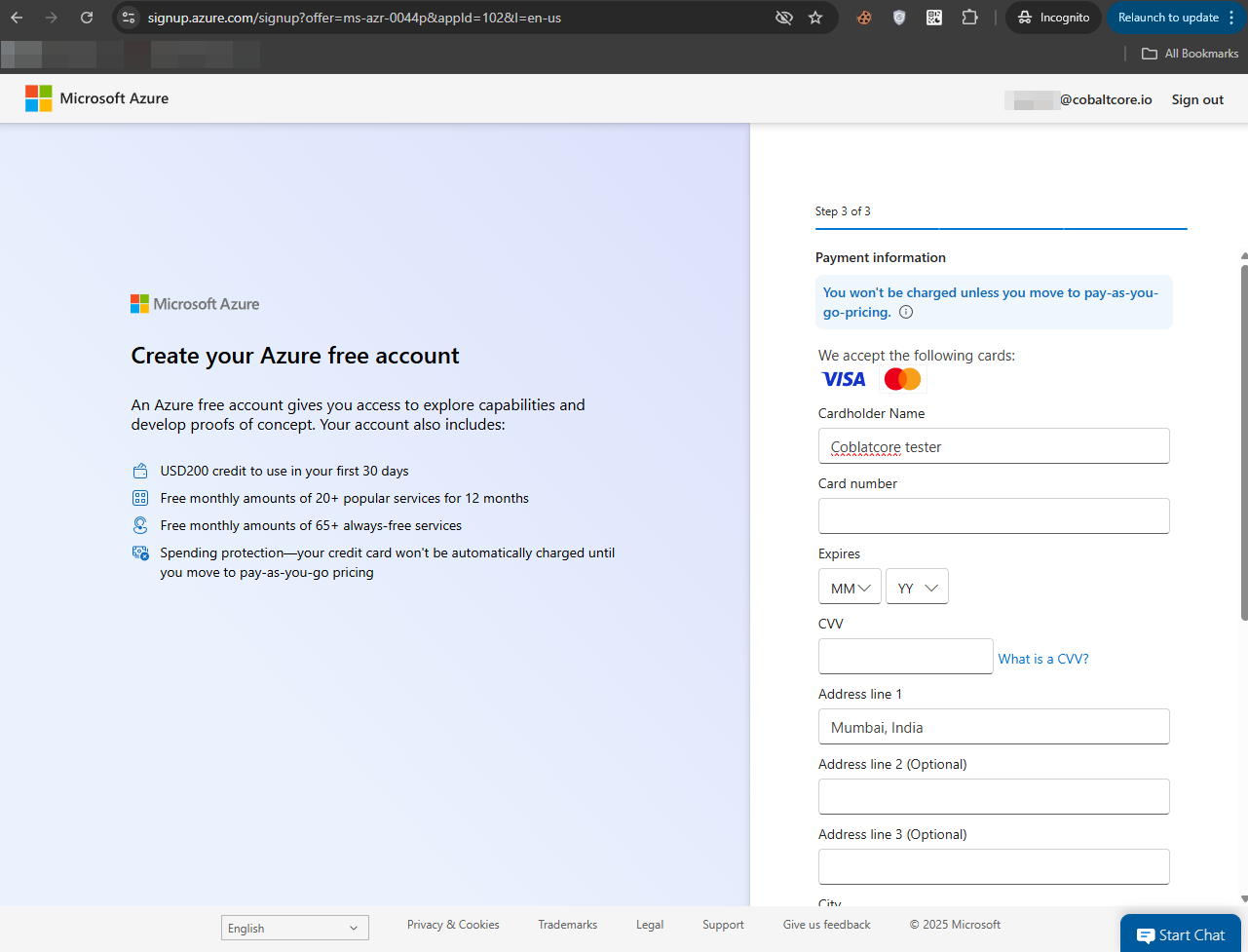
After providing your credit card information, a small transaction will be made to ensure the card is real.
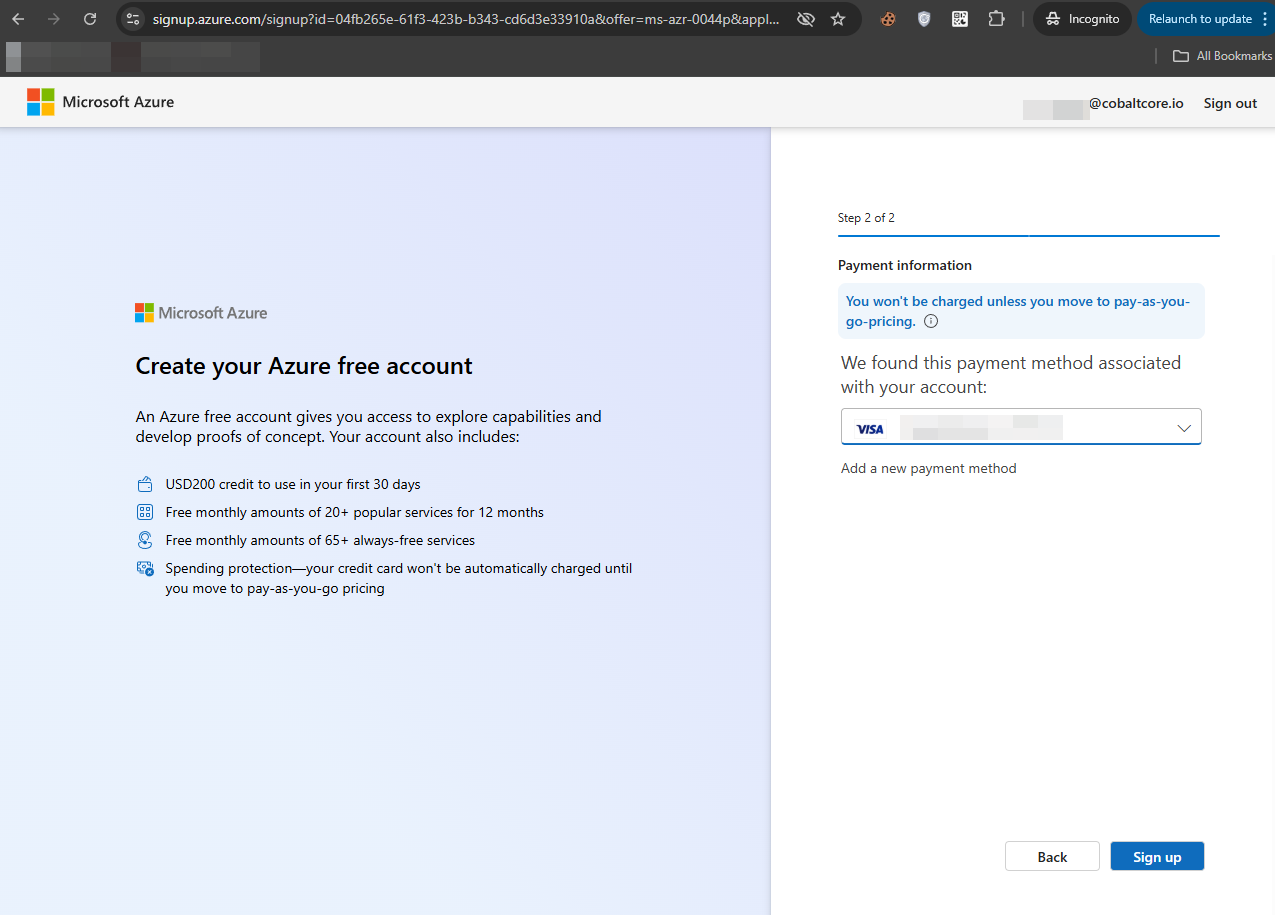
Finally, you now can click on “Sign up,” where you’ll be automatically redirected to https://portal.azure.com.
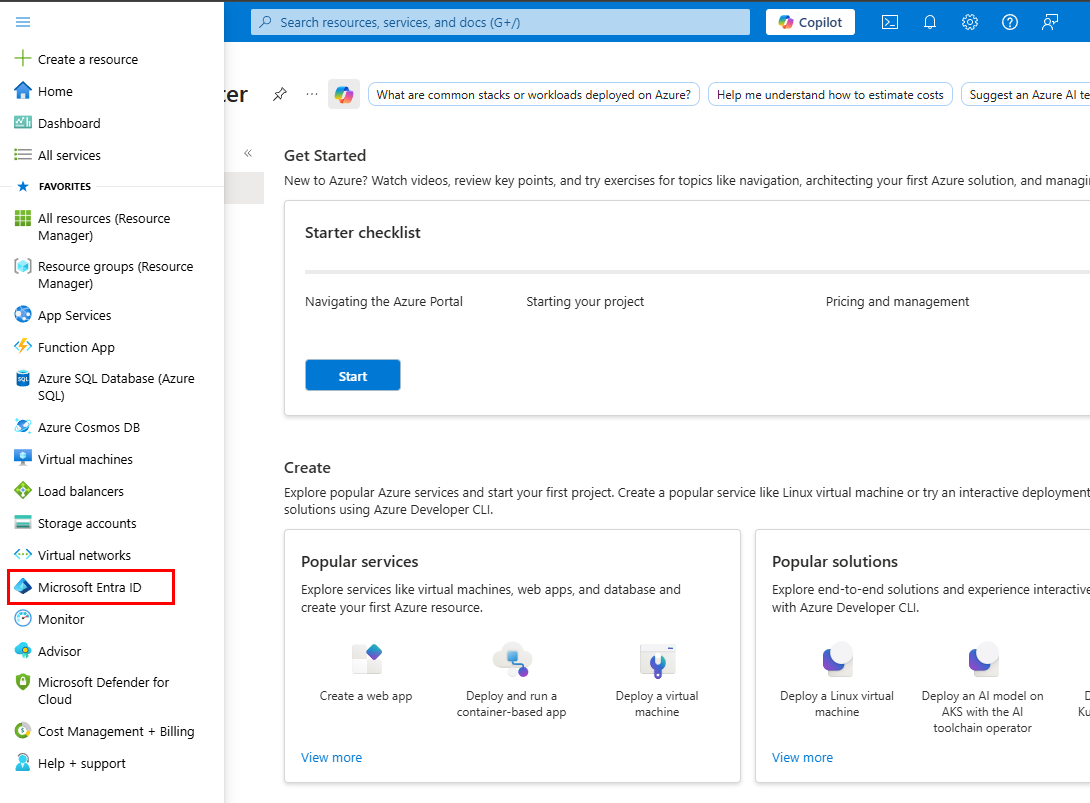
That’s how easy it is to create a new account. To view your tenant information, open the menu in the top-left corner and navigate to Microsoft Entra ID.
In the image below, this is where you manage everything related to Microsoft Entra ID (formerly Azure Active Directory), including creating users and groups, managing licenses, and syncing your on-premises Active Directory to the cloud. We’ll cover these features in more detail in later parts of this series.
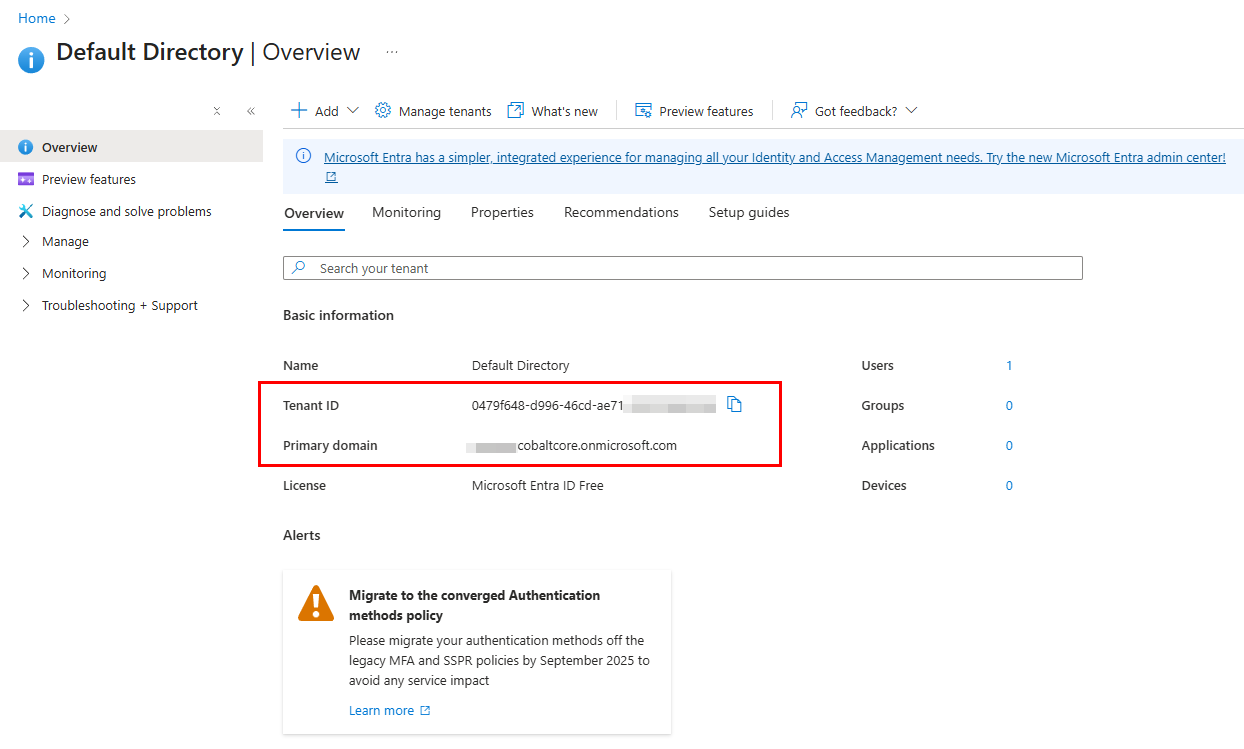
You can also view your subscription details by typing “Subscriptions” into the search bar.
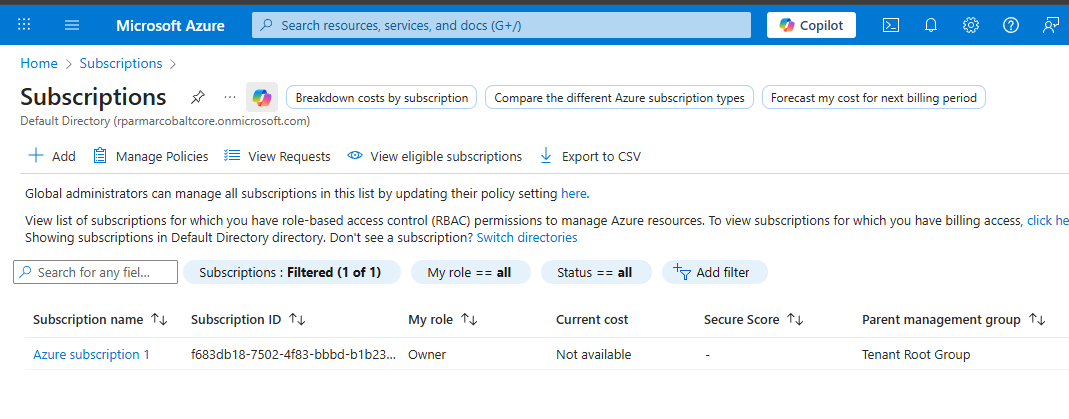
Here, you can see the first subscription you created. You can also click “Add” to create additional subscriptions, which will appear on this same page. By default, all new subscriptions are placed under the Root Management Group, but they can be moved to different management groups later if needed.
Different Login Ways
Azure Portal allows you to create and manage all the cloud services, but this can also be done from your Terminal by using the Azure PowerShell module or using Azure CLI.
Azure PowerShell Module
Installing this module is pretty straightforward by using the command below:
Install-Module -Name Az
This can also be done using the Chocolatey package manager:
choco install az.powershell --version=9.0.1
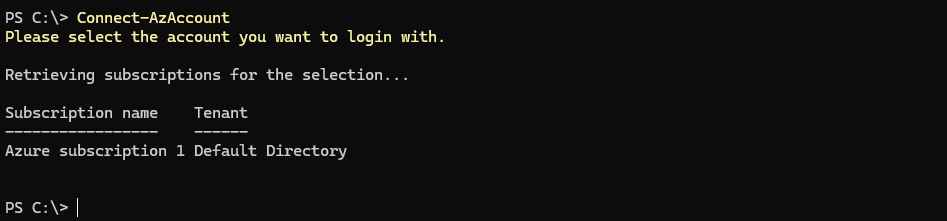
Once installed, we can log in with the module by using “Connect-AzAccount.”

After running the command, you’ll be prompted to choose an account.
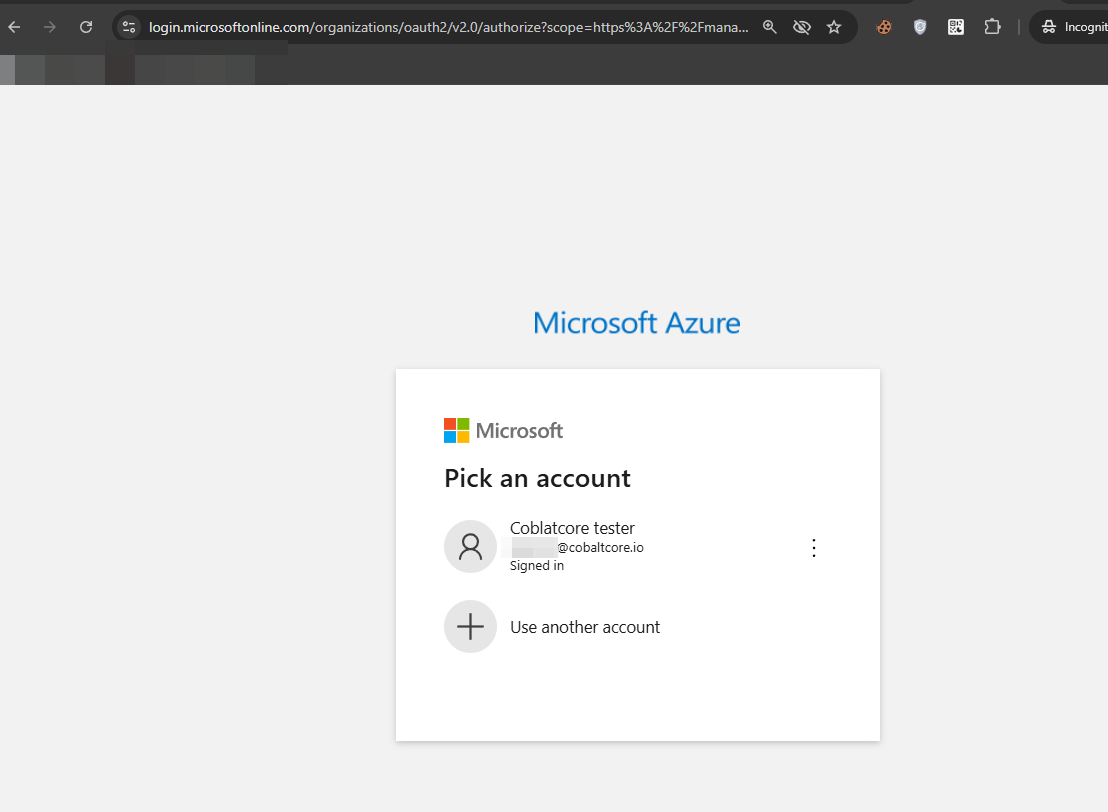
Simply click on your account and you will be logged into the Azure Power Shell module.
Azure CLI
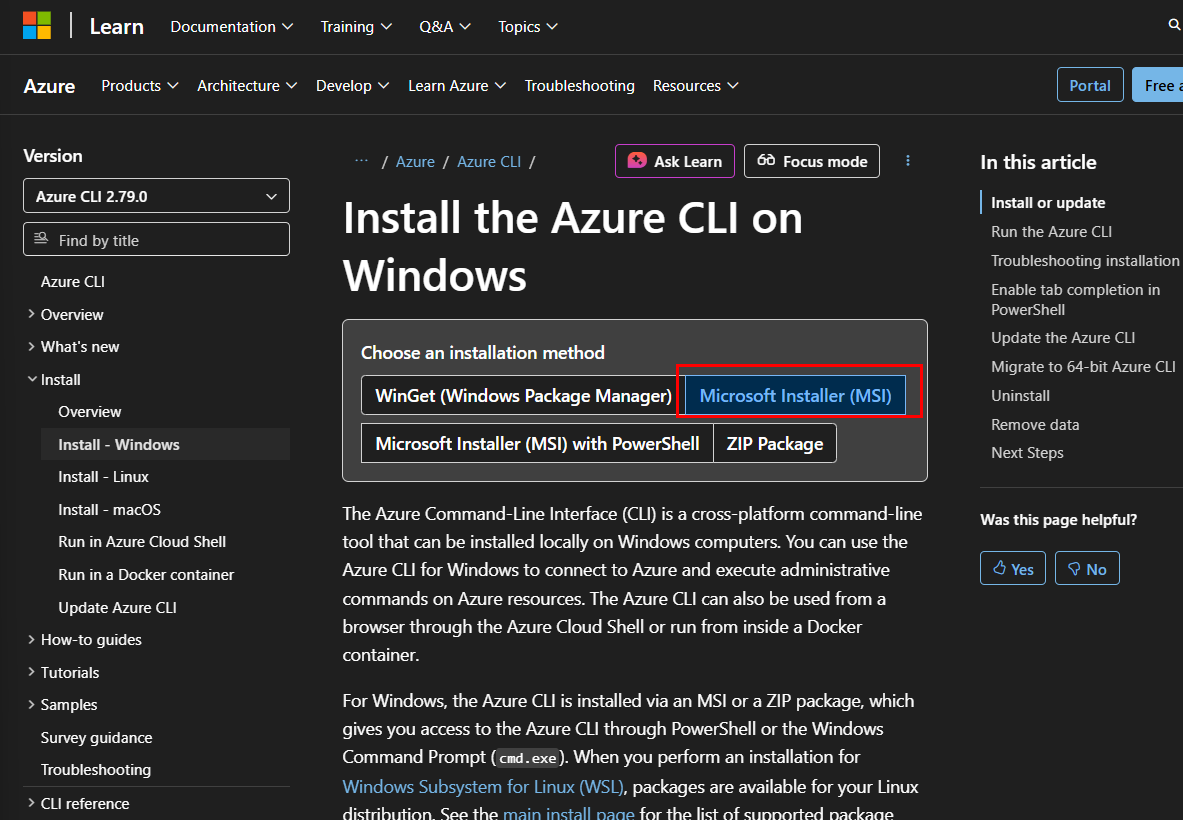
To install Azure CLI, browse to this page: https://learn.microsoft.com/en-us/cli/azure/install-azure-cli-windows?view=azure-cli-latest&pivots=msi. After that, select Microsoft Installer (MSI).
Down below, you will see the option to download the MSI file for Azure CLI.
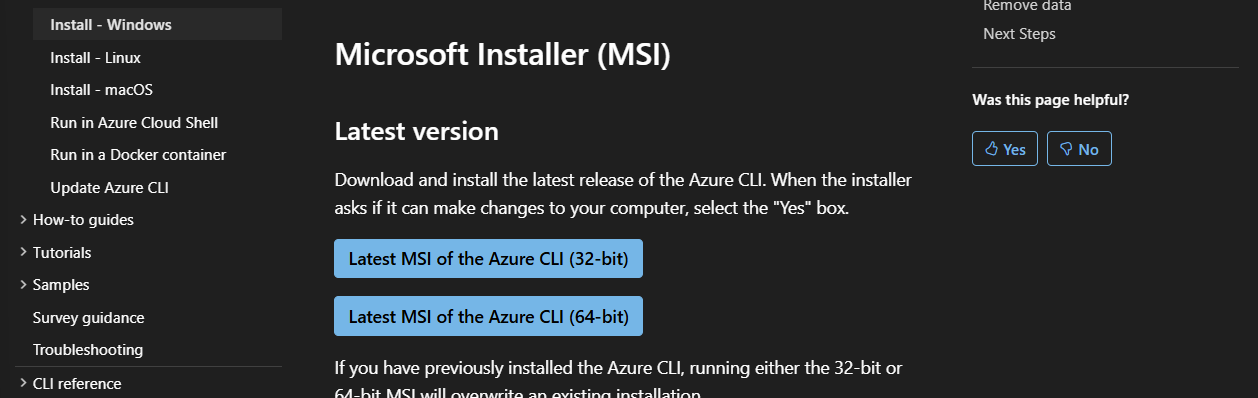
Depending on your operating system, download the file and install it.
Another option is to use the Chocolatey package manager for Windows by running the command below:
choco install azure-cli --version=2.69.0
Once installed, we can log in by running the “az login” command.
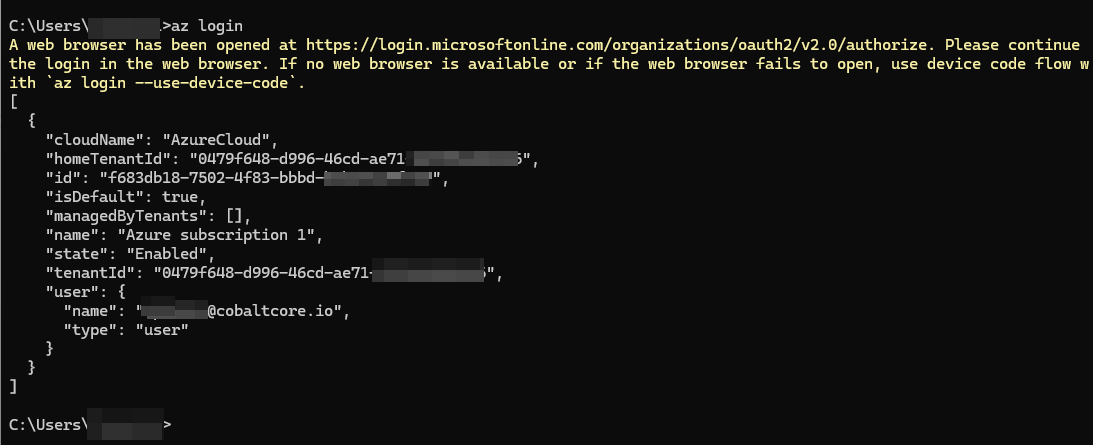
You’ll be prompted to select an account. Choose the correct account to complete the login process.
Login Methods
Device Code Login
Device Code Login works similarly to what you see with OTT platforms like Netflix. When signing in on a TV, you’re shown a code that you enter on your phone or browser to authenticate, allowing you to log in without typing a password on the device itself.
Azure follows the same concept. Both the Azure PowerShell module and Azure CLI support login using a device code, enabling secure authentication through a separate browser session.
Azure CLI
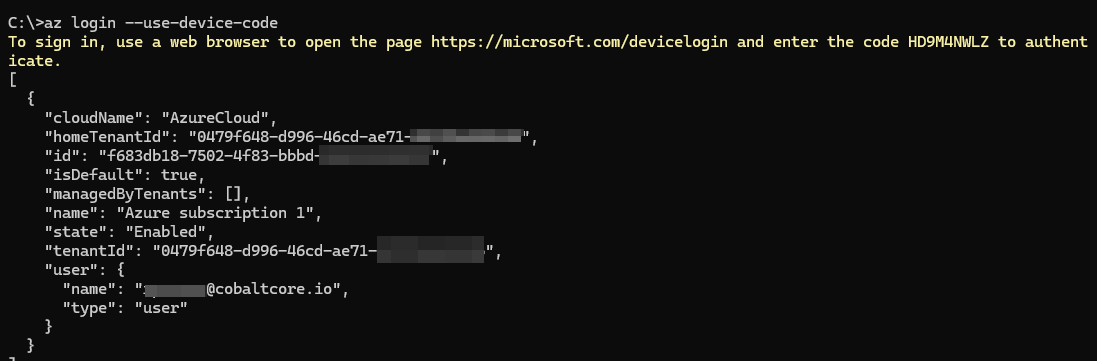
For example, to use this in Azure CLI, we can run below command:
az login --use-device-code

When you run the command, it returns a device code along with a URL. Navigate to the URL and enter the code when prompted to complete the login process.
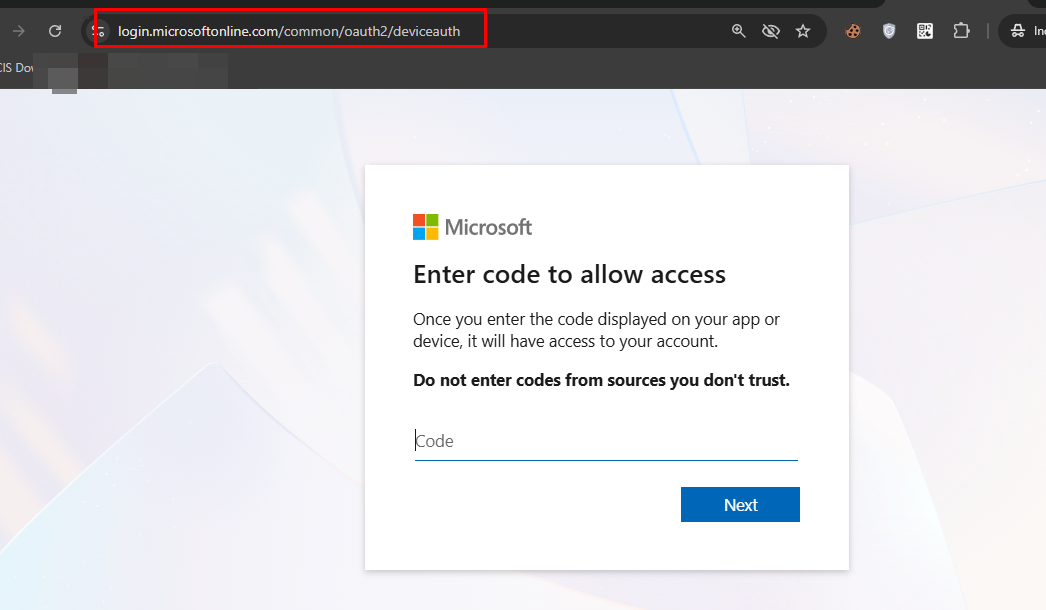
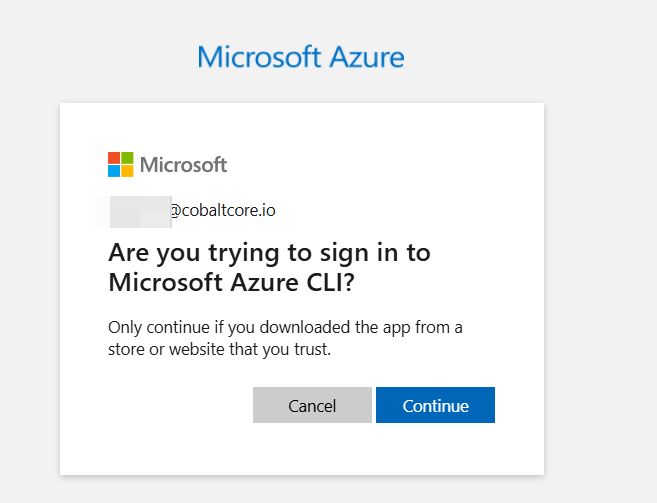
Insert the code in it and click on Next, then select your account and click on continue.
And will be logged in to the terminal.
Azure PowerShell
If using the PowerShell module, you can run the command below:
Connect-AzAccount -DeviceCode

Below is the official workflow of how a device code phishing works.
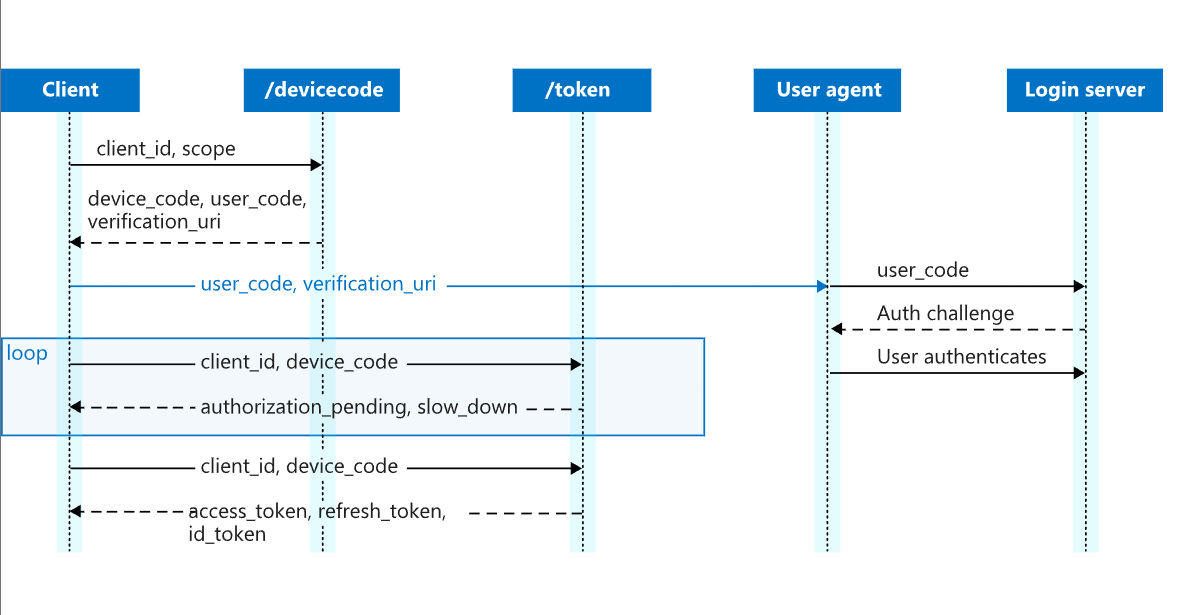
I won’t go deep into how the authentication process works here. If you’re interested, you can read more about it here. Instead, let’s focus on a few core concepts that are important to understand.
The device code generated during login is only valid for 15 minutes. This means the authentication process must be completed within that time window or the code will expire.
This mechanism can also be abused in real-world attacks. For example, an attacker could send a victim a device code as part of a phishing attempt. If the victim unknowingly uses that code to authenticate within the 15-minute window, the attacker could gain authenticated access from their own terminal session.
Device code phishing is an increasingly common technique, and attackers have developed methods to continuously rotate codes, enabling more persistent and convincing phishing campaigns.
Service Principal Login
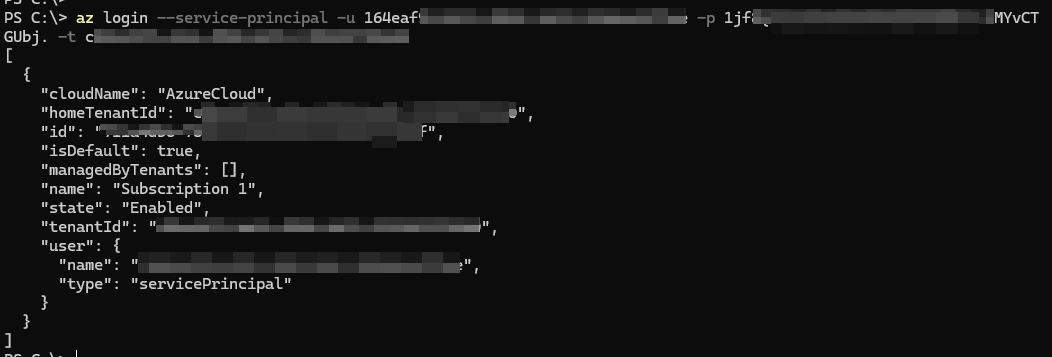
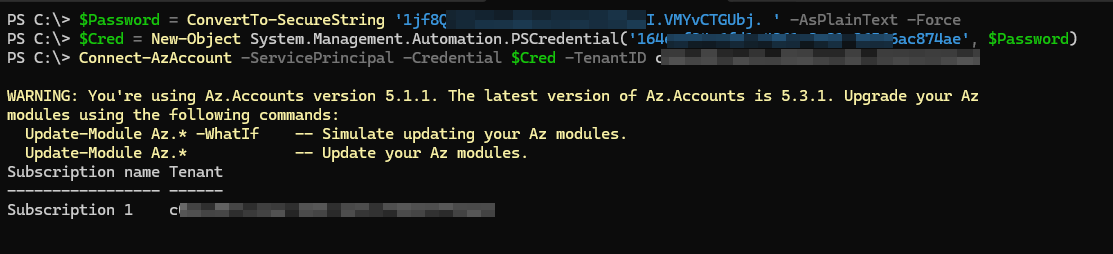
To log in with service principal, we need Client ID, Client Secret and Tenant ID to login.
Azure CLI
az login --service-principal -u [--ClientID--] -p [--ClientSecret--]-t [--Tenant-ID--]
Azure PowerShell
$Password = ConvertTo-SecureString '<ClientSecret>' -AsPlainText -Force $Cred = New-Object System.Management.Automation.PSCredential('<ClientID>', $Password)Connect-AzAccount -ServicePrincipal -Credential $Cred -TenantID <TenantID>
Access Token Login
There may be situations where you don’t have valid credentials but do have an access token (for example, a Management API token, Microsoft Graph token, or Key Vault token).
In these cases, Azure CLI can still be used for certain actions. Additionally, Azure PowerShell provides methods that allow you to authenticate directly using an access token, enabling access without a traditional username and password.
Azure PowerShell
Below are the examples.
Using an ARM access token is important, whereas the Account ID value can be a random value.
connect-azaccount -AccessToken [--ARM-Access-Token--] -AccountId sp
Similarly, if we have vault access token and graph access token, we can use that as well. However, we still need to provide the ARM access token in order to use other access tokens.
connect-azaccount -AccessToken [--ARM-Access-Token--] -MicrosoftGraphAccessToken [--Graph-Access--Token--] -KeyVaultAccessToken [--Vault-Access-Token] -AccountId sp
Stay tuned for Part 3!